Mirklurk: Every Step Matters Steam Deck & Settings Hub
Playable expectations, patch-era display options, languages, and low-spec performance tips.
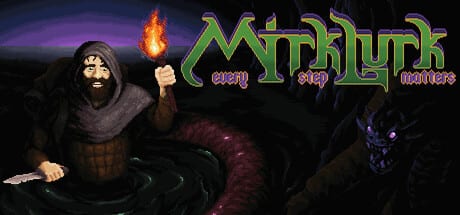
Mirklurk: Every Step Matters is a lightweight GameMaker survival RPG from Edym Pixels that lists as Steam Deck Playable on Steam app 3972980. This hub explains what Playable usually means in practice, how to map controls and touch habits for 8 AP turns, which zoom and window options arrived in late Early Access patches, how to switch Spanish and Portuguese (Brazil) after language drops, and why the game still runs on modest hardware—including Deck—when you respect the published minimums.
Pair this page with full PC numbers on system requirements and input literacy on Controls. The embedded Vormithrax Episode 03 clip mid-article is practical handheld-friendly play footage, not a settings tutorial—use it to see pacing, then return here for Deck-specific toggles.
What “Steam Deck Playable” means
Playable is not Verified. Expect a usable session with possible caveats: default glyphs, occasional UI scale quirks, or community Proton notes that change over time. Always re-check the live Deck compatibility section on the Steam store page after major patches. Mirklurk’s pixel UI and turn-based combat suit handheld play better than twitch shooters, but camping menus, inventory, and attack rotation still need readable scale.
Practical Playable expectations:
- Install on internal SSD or a fast microSD.
- Start on default Proton unless a current community note says otherwise.
- Keep a second window or screenshot of the survival checklist—bed sessions still need dry wood discipline.
- Treat hitching during fire particles as a cue to close overlays, not as “the game is broken.”
- After Version 1.0 or hotfixes, verify game files before blaming hardware.
Controls and touch on Deck
Mirklurk’s mouse-forward design translates well once you map deliberate actions:
- Bind weapon swap and scouting to easy face buttons; AP combat rewards intentional presses over flick aim.
- Map attack rotation (desktop right-click) to a comfortable rear paddle or hold modifier so pattern previews stay readable.
- Use trackpads or joystick mouse for inventory and camp UI; touch can help quick taps but is optional.
- Zoom often—middle-mouse zoom on desktop becomes a bound button or radial on Deck. Balanced zoom options from late 0.9.x patches help when UI feels too tight or too sparse.
- Read Controls for the eight-AP economy before inventing exotic layouts.
Zoom, borderless, and resolution options from patches
Late Early Access display work matters on handhelds and low-spec laptops alike:
- Borderless window options (around the 0.9.6.5 era) help when exclusive fullscreen misbehaves on Deck or multi-monitor docks.
- Balanced zoom settings improve readability of grid HP, armor cells, and fire menus without constant manual scrubbing.
- Resolution fixes in the same patch window reduce clipped menus—if something looks cut off, revisit Options before reinstalling.
Skim patch notes whenever Steam news mentions display, zoom, or language UI. Then re-test your Deck layout for one short campfire drill, not a blind dungeon.
Language switching (ES / PT-BR and friends)
Official language support widened late in Early Access: Spanish landed around 0.9.6.0, with Portuguese (Brazil) as a follow-up drop. The game also ships English, German, and Simplified Chinese (this wiki covers en/de/es/pt only).
On Deck:
- Change language in Steam properties or in-game Options if exposed.
- Fully restart the client so fonts refresh—late EA notes repeatedly implied restart after language patches.
- Confirm UI strings and any keyboard hints still match your controller layout.
- Keep wiki links locale-agnostic in your notes; the Guides Hub and Tools Hub localize when you browse this site in DE/ES/PT.
Performance on low-spec and Deck APUs
Historical minimums sit near Windows 10, an Intel Core i3 m370 @ 2.40 GHz, 4 GB RAM, HD 5000-class graphics, and about 350 MB storage. Deck’s APU clears that bar with room to spare. Still:
- Close Chromium farms and heavy overlays on 4 GB-class machines and docked mini-PCs.
- Prefer power profiles that do not throttle mid-firecraft.
- Prefer borderless or windowed modes if exclusive fullscreen hitching appears.
- Remember smooth frames do not equal easy survival—meters and camping still kill runs. Strategy lives under Players, Tier List, and Guides.
Suggested Deck session workflow
- Confirm Playable glyph and Proton notes on Steam.
- Set zoom and borderless for readable combat grids.
- Map swap, scout, rotate, and zoom before leaving the first shelter.
- Tick dry wood, stones, torches, bedroll, food, and salve on the survival checklist.
- Choose a playstyle packing list—forager, warrior, or mage—before a long delve.
- After any display or language patch, restart once and re-verify files if assets look wrong.
Docked play and travel kits
Docked Deck plus mouse recovers the desktop feel described in Getting Started materials. Travel kits still obey Warmth and weight: steel for planned fights, light layers for marches. Handheld sessions in bed tempt “one more ruin”—budget AP and meters the same way you would on PC. Early orientation: Getting Started and Early game tips.
What this hub will not claim
No guarantee of Verified status, no fabricated FPS charts, no Proton version pinning that goes stale next week. Deck ratings and community notes move; this page teaches habits that survive those moves: readable zoom, honest Playable expectations, language restart hygiene, and links back to requirements and controls.
After installing on Deck
Boot a short campfire drill. Confirm language, zoom, and bindings. Keep Links handy for Steam support, Discord, and developer news. Watch the Updates Hub when patches touch display options. At $14.99 list with a tiny install footprint, Mirklurk is an excellent swamp exile for Deck—as long as every step still respects the fire.
Return to the Tools Hub for the packing checklist and PC specs sibling pages whenever you switch devices.
Frequently Asked Questions
Quick answers for surviving The Mirk.
Is Mirklurk Verified on Steam Deck?
It is listed as Playable. Check Steam’s live Deck section for the newest caveats after patches.
Which settings help most on Deck?
Balanced zoom, borderless window if fullscreen misbehaves, deliberate binds for swap/scout/rotate, and a restart after language changes.
When were Spanish and Portuguese (Brazil) added?
Spanish around 0.9.6.0 in late Early Access, with Portuguese (Brazil) as a follow-up. English and German were already available.
Does Deck meet Mirklurk’s system requirements?
Yes. Official minimums are modest (~4 GB RAM, HD 5000-class, ~350 MB). See the system requirements page for the full table.
Where do I learn combat inputs for handheld play?
Start with the Controls guide for AP, zoom, and attack rotation, then tune Deck paddles to those actions.